To check whether an IEC C13 Power Cable fits a desktop computer’s power supply, inspect the supply inlet, confirm the cable-end shape, and verify the electrical rating before connecting it. A successful desktop PC hookup depends on matching the connector to the inlet, while computer supply fit also requires suitable voltage, current capacity, and enough room for the cable to sit securely.
The IEC C13 connector is common on desktop power supplies, but visual similarity alone does not prove computer supply fit. For a reliable desktop PC hookup, compare the cable with the actual inlet and the equipment label, then consider how the computer will be positioned. These checks help prevent forced connections, loose plugs, and avoidable cable strain.
Check the connector and power supply inlet
Match the connector outline to the inlet
Start with the computer turned off and disconnected from the wall. Locate the AC inlet on the power supply, usually at the rear of the case, and examine its outline. An IEC C13 connector has a three-slot form intended to mate with a compatible appliance inlet. For desktop PC hookup, the cable end should align naturally; computer supply fit is not established if the connector shape or contact arrangement differs.
Hold the cable beside the inlet before inserting it. The IEC C13 connector should face the correct way and meet the inlet evenly, without twisting or pressing at an angle. This simple desktop PC hookup check reveals obvious mismatches, and it protects the inlet from damage. If computer supply fit is uncertain, stop and check the supply documentation or its markings rather than testing the connection with force.
Use insertion feel as a practical check
When the shapes appear compatible, insert the plug straight into the inlet while the equipment remains unplugged from mains power. A suitable IEC C13 connector should enter firmly and sit evenly, without a gap that suggests it is only partly engaged. During desktop PC hookup, do not bend the cable to make the plug line up. Computer supply fit requires a stable, direct connection rather than a plug held in place by pressure.
A connector that feels unusually loose, rocks from side to side, or stops before seating needs further investigation. Remove it and look for bent contacts, debris, cracks, or damage to the inlet. Even a familiar IEC C13 connector should not be assumed to work with a worn socket. A safe desktop PC hookup depends on sound parts, and computer supply fit should be rejected whenever the connection is visibly damaged or unstable.
Verify electrical ratings and equipment requirements
Read the power supply label
Physical compatibility is only one part of the check. Read the power supply label and identify its input voltage range, frequency, and current information, then compare those details with the cable rating and the local electrical supply. The IEC C13 connector describes the cable-end interface, not every electrical limit. For computer supply fit, the cable must be rated appropriately for the equipment and operating environment.
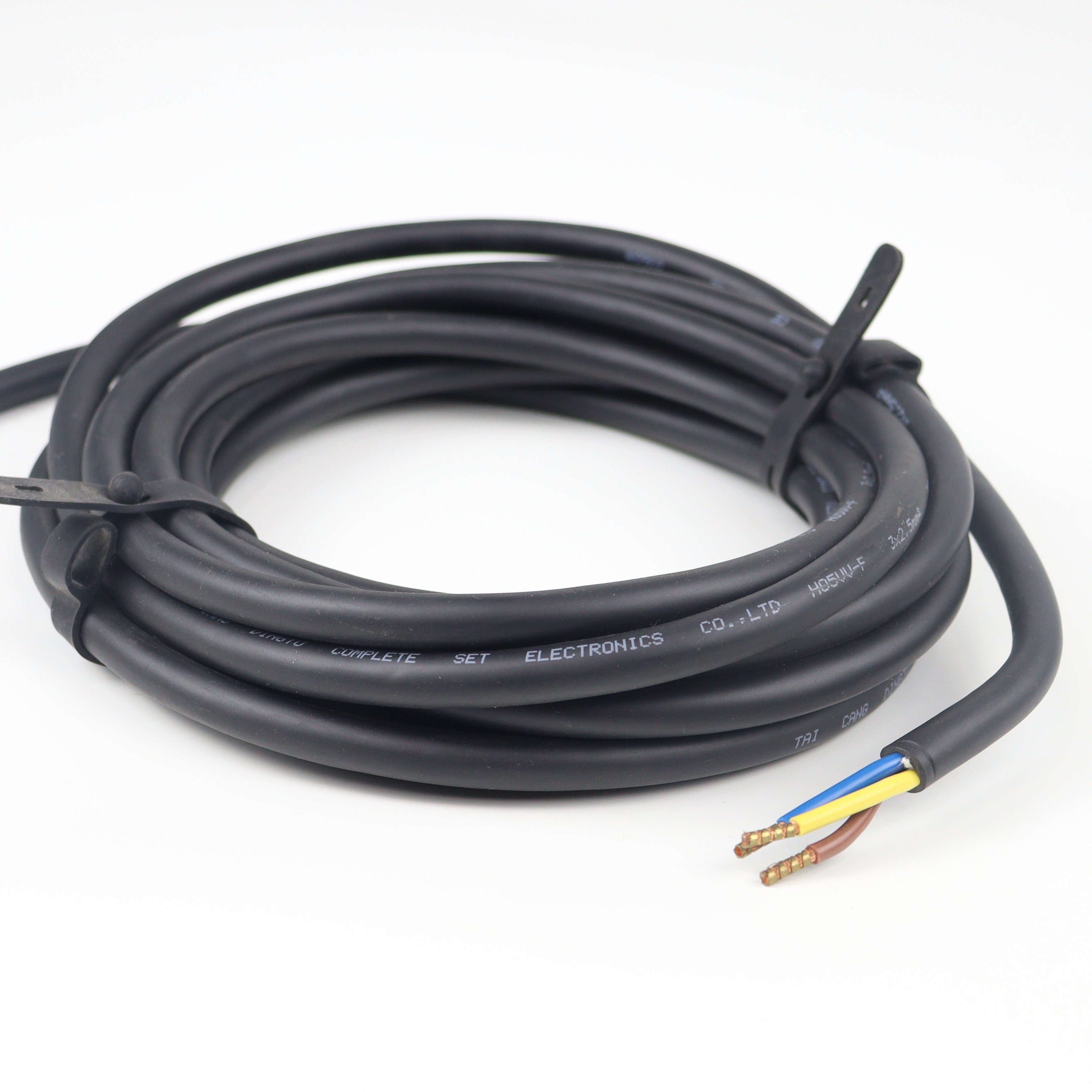
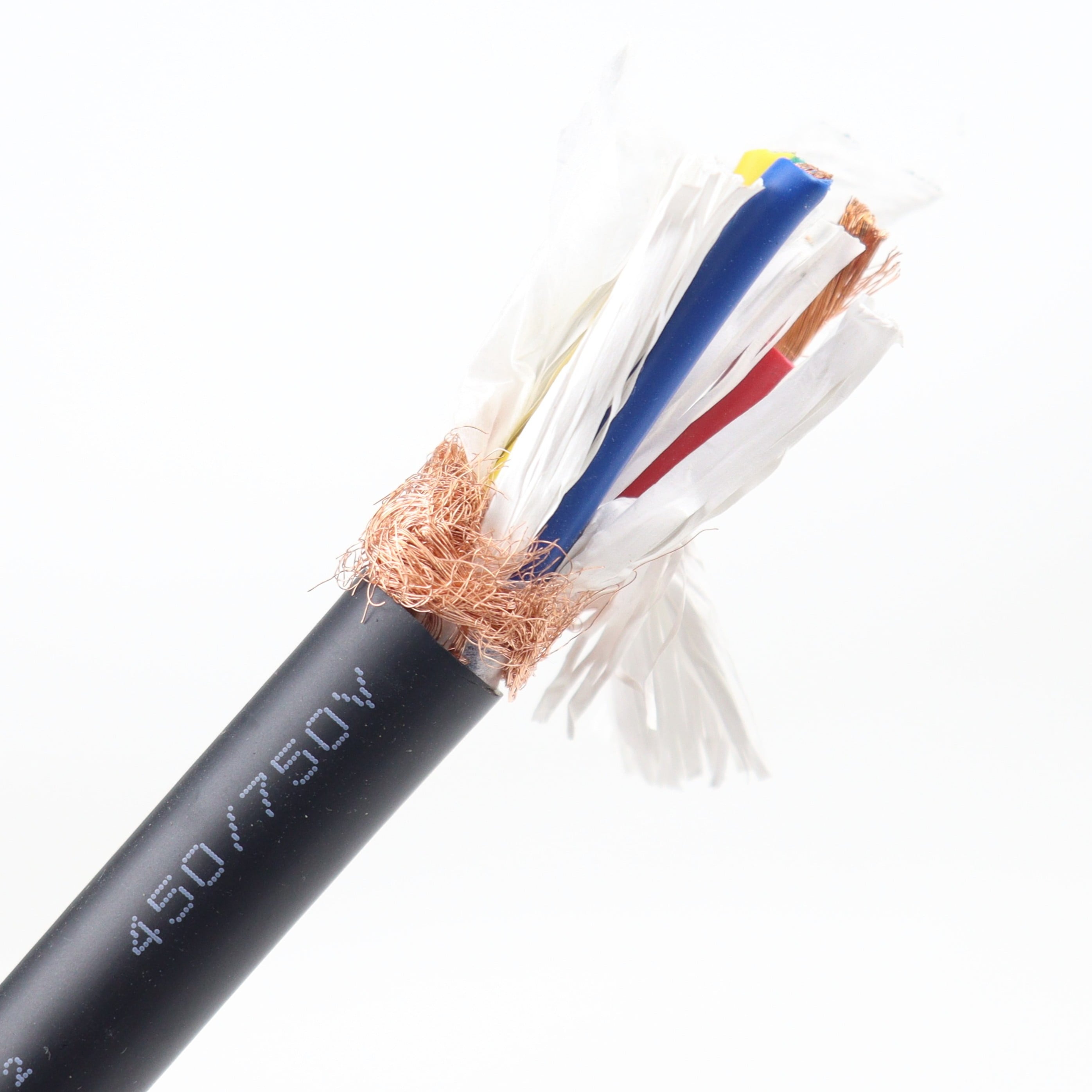
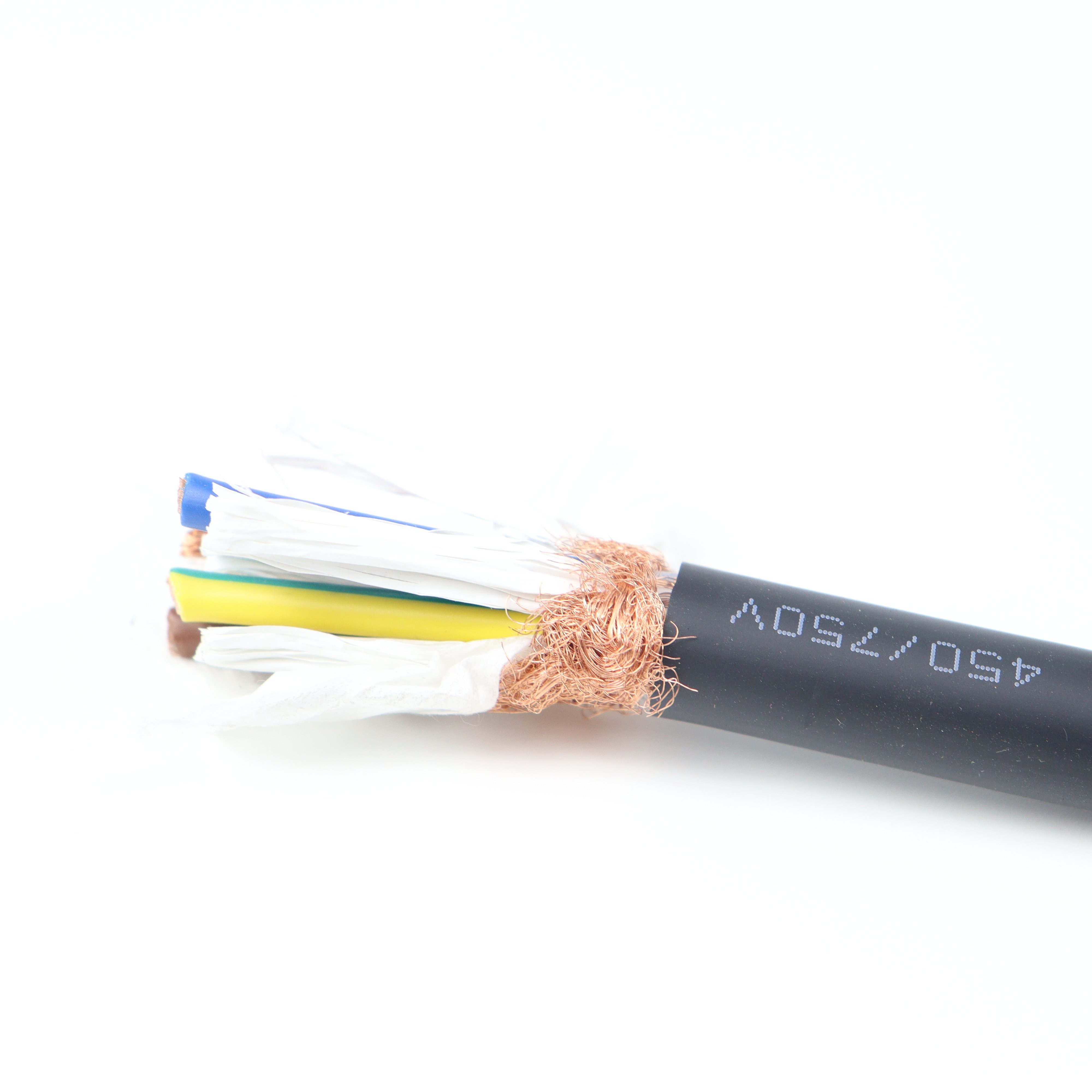
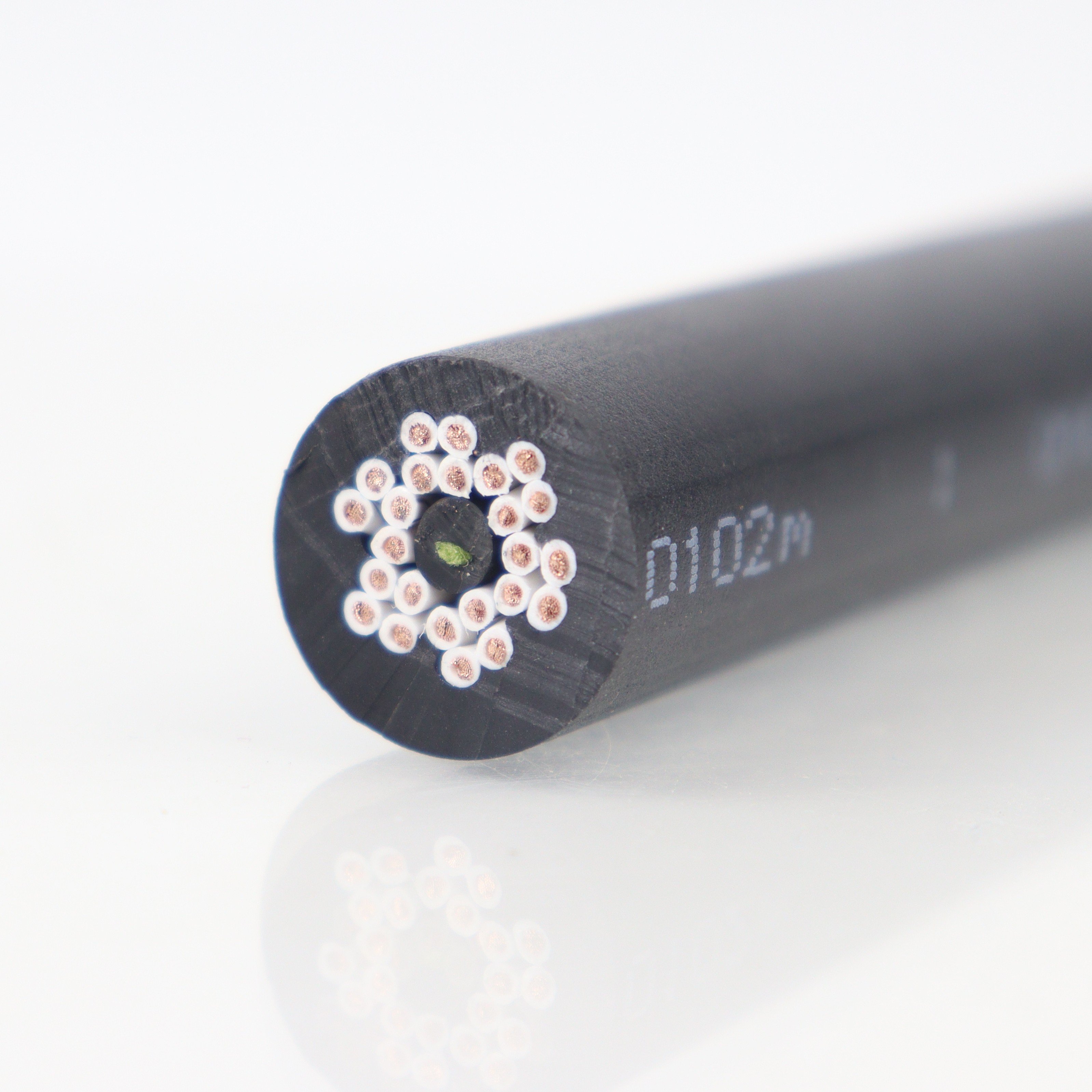
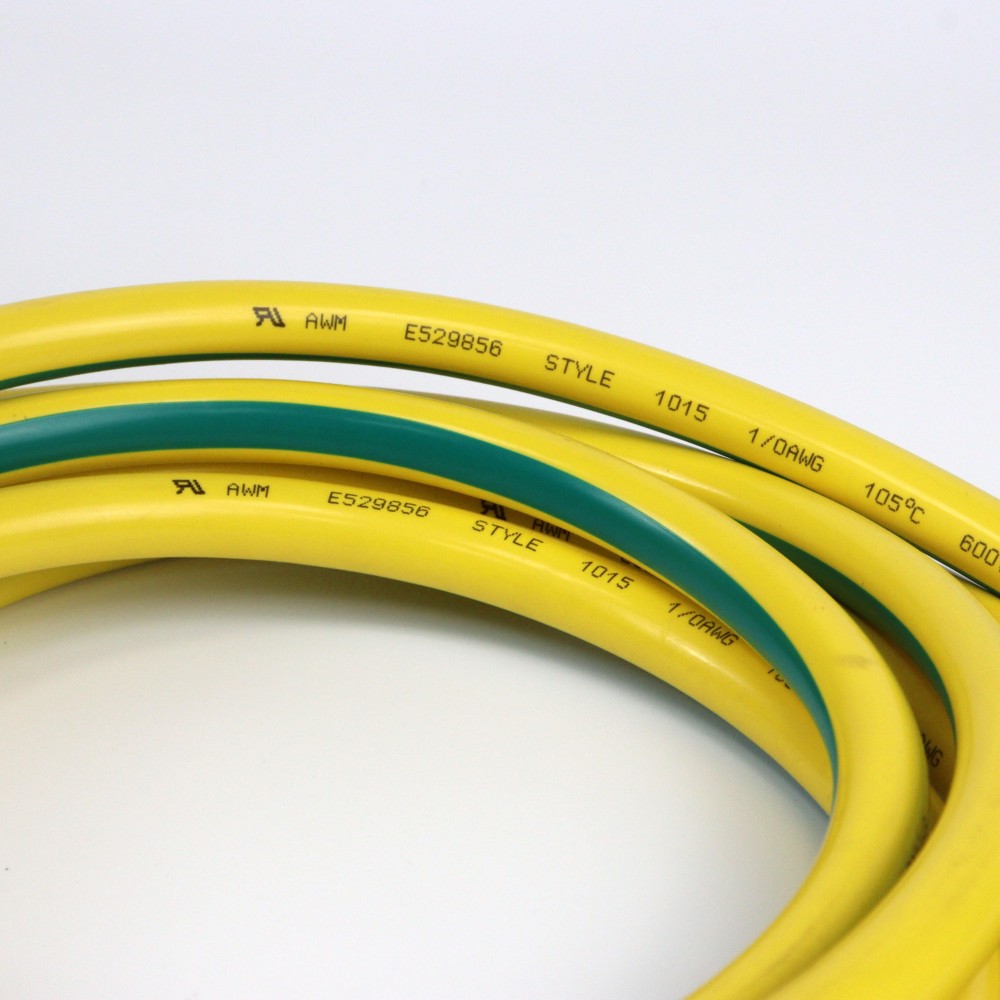
Inspect any printing or molded information on the cable, including voltage and current ratings, conductor details, and applicable safety marks. Do not infer capacity from thickness, color, or appearance alone. A correct desktop PC hookup uses a cable whose documented ratings meet or exceed the requirements stated for the computer. The IEC C13 connector may physically mate while other cable specifications remain unsuitable, so verify both the interface and rating.
Consider the complete electrical path
Check the wall outlet, any extension lead, and any power distribution equipment included in the setup. Each part of the path needs to be appropriate for the connected load and local regulations. The IEC C13 connector only joins the cable to the computer supply; it does not certify the outlet or the rest of the desktop PC hookup. Confirming those details gives a more complete basis for computer supply fit.
When labels are missing or difficult to read, consult the computer or power supply documentation instead of guessing. A qualified technician can help interpret unclear ratings, especially in a managed workplace with electrical safety procedures. Avoid adapters that change connector types without a documented reason. A dependable desktop PC hookup uses a correctly specified cable, and computer supply fit should be confirmed against reliable equipment information, not assumptions about a standard-looking plug.
Confirm cable clearance and final connection
Check the route before powering on
With the plug seated, plan the cable route from the computer to the outlet. Leave enough slack for normal movement, but keep the cable away from sharp edges, hot surfaces, pinch points, and walkways. Good computer supply fit includes practical clearance behind the case, not just a matching inlet. The IEC C13 connector should not be pulled sideways by a tight desktop PC hookup or trapped against a wall.
Check whether nearby furniture, a desk panel, or a cable bundle presses on the plug. If space is limited, reposition the computer or use a correctly rated cable with a suitable length, rather than forcing a bend at the inlet. A clear route supports a stable desktop PC hookup and reduces strain on the IEC C13 connector. These installation details matter when judging computer supply fit in a crowded workstation.
Make a final visual and functional inspection
Before restoring power, verify that the cable is undamaged, fully seated, and routed without tension. Confirm that the computer’s power switch is off, then connect the cable to the outlet following workplace procedures. A correct desktop PC hookup should remain secure when the cable is gently moved, without exposing contacts or shifting the inlet. Recheck the IEC C13 connector and the cable path as part of the computer supply fit decision.
If the connection feels hot, produces a smell, makes an unusual sound, or causes intermittent power, switch off and disconnect it safely. Do not keep using a cable or inlet that shows signs of overheating or damage. Replace the defective component with one that meets the documented requirements, and have the equipment assessed if the problem persists. Careful computer supply fit checks make the IEC C13 connector a considered choice, not a guess.
FAQ
Does every desktop computer use an IEC C13 connector?
No. Many desktop supplies use this familiar inlet, but models and equipment configurations can differ. Inspect the inlet directly and check the manufacturer documentation before buying or connecting a cable. For a planned desktop PC hookup, confirm that the IEC C13 connector matches the actual inlet and that computer supply fit includes the required ratings.
Can a plug fit physically but still be unsuitable?
Yes. A matching connector shape does not establish that the cable’s electrical rating, condition, or length is appropriate. Read the equipment and cable markings, and do not use damaged components. The IEC C13 connector addresses the interface, while computer supply fit also depends on safe specifications for the desktop PC hookup.
What should I do if the cable will not seat easily?
Stop and remove the cable rather than pushing harder. Check the orientation, connector condition, and inlet for damage or obstruction, then consult the equipment documentation if the cause is unclear. A proper IEC C13 connector should align without force; unresolved computer supply fit means the desktop PC hookup should wait until compatibility is confirmed.

 EN